
How to connect to SSH
SSH is accessible on port 22 on our shared hosting. For security, we've disabled password authentication and require the configuration of an SSH key to connect. Here's how to set that up in Enhance and connect.
Generate an SSH key (if needed)
If you don't already have an SSH key, you'll need to generate one first. Open your terminal and run:
ssh-keygen -t ed25519 -C "your_email@example.com"
Press Enter to accept the default file location (usually ~/.ssh/id_ed25519 on macOS/Linux or C:\Users\YourName\.ssh\id_ed25519 on Windows). You can optionally set a passphrase for extra security. Once generated, you'll find your public key at ~/.ssh/id_ed25519.pub (or the Windows equivalent).
Add an SSH key in Enhance
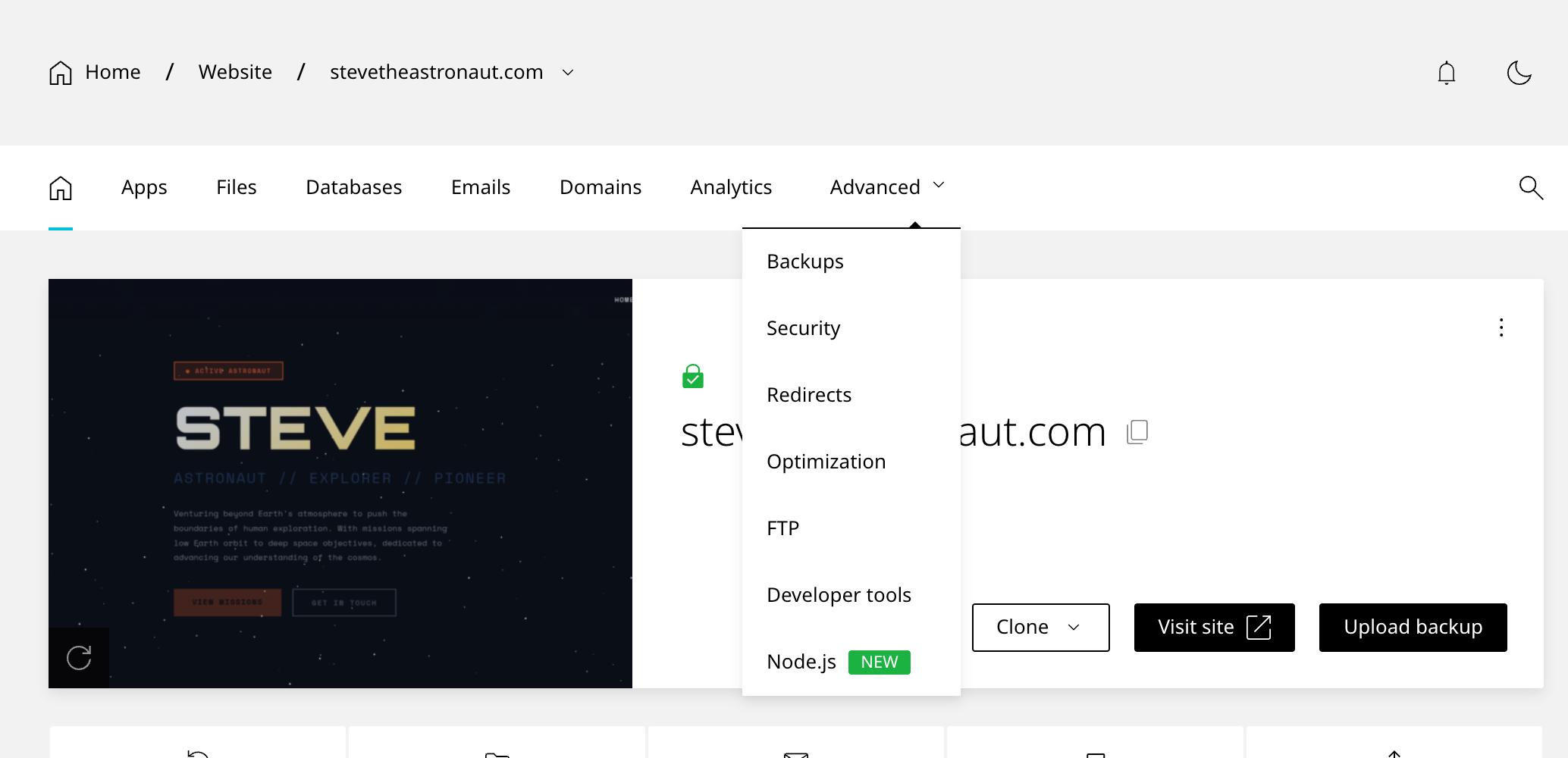
From the Enhance site menu, navigate to Advanced → Developer tools. You'll find the SSH key manager here.
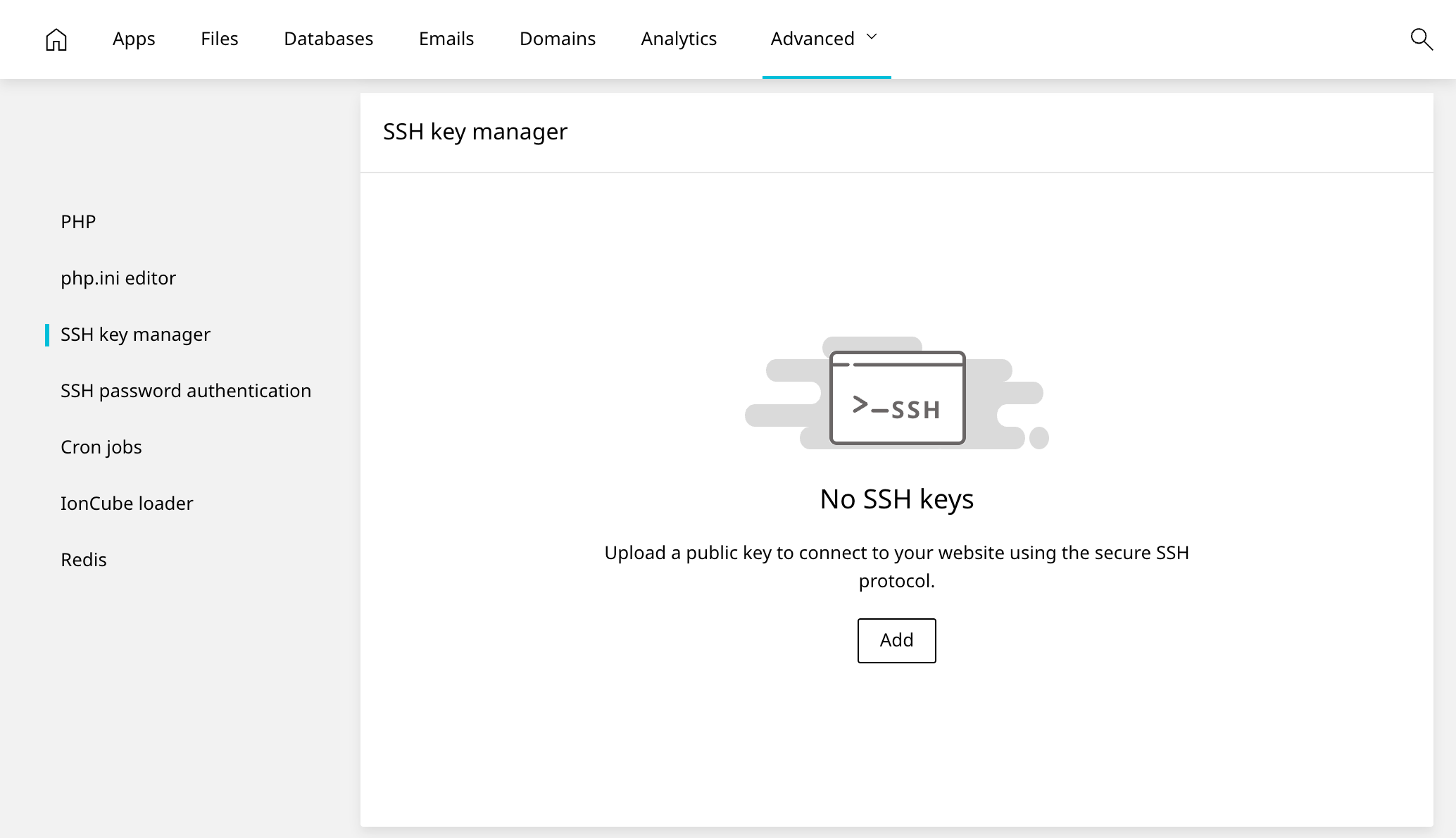
Scroll down to the SSH key manager section. You'll also see a section for password authentication under it. Ignore this, as it is a lie. We've disabled password authentication and will not release it from our vicious grasp. Click Add.
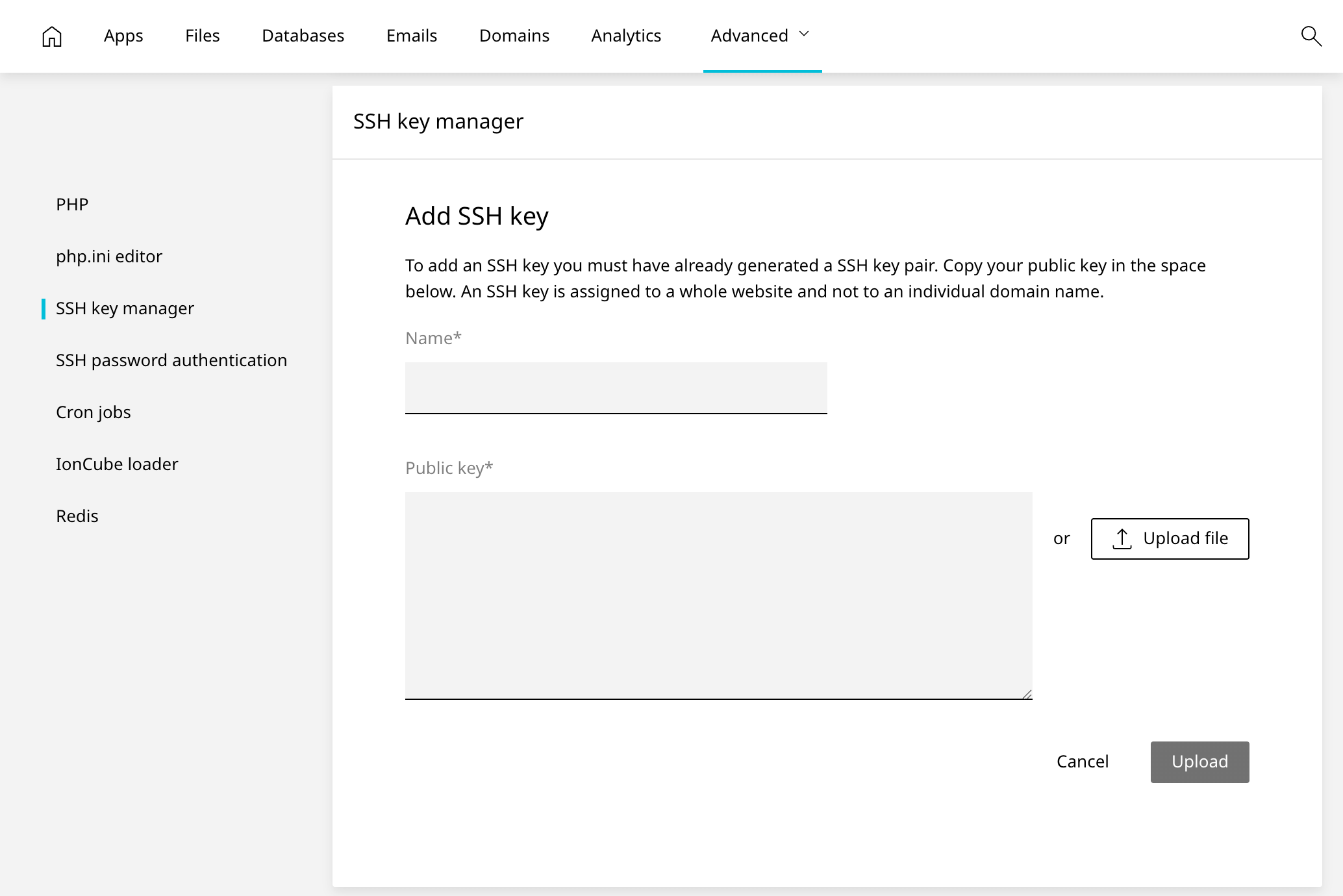
You have the option to manually add or upload an SSH key here. Just do either and then click Upload.
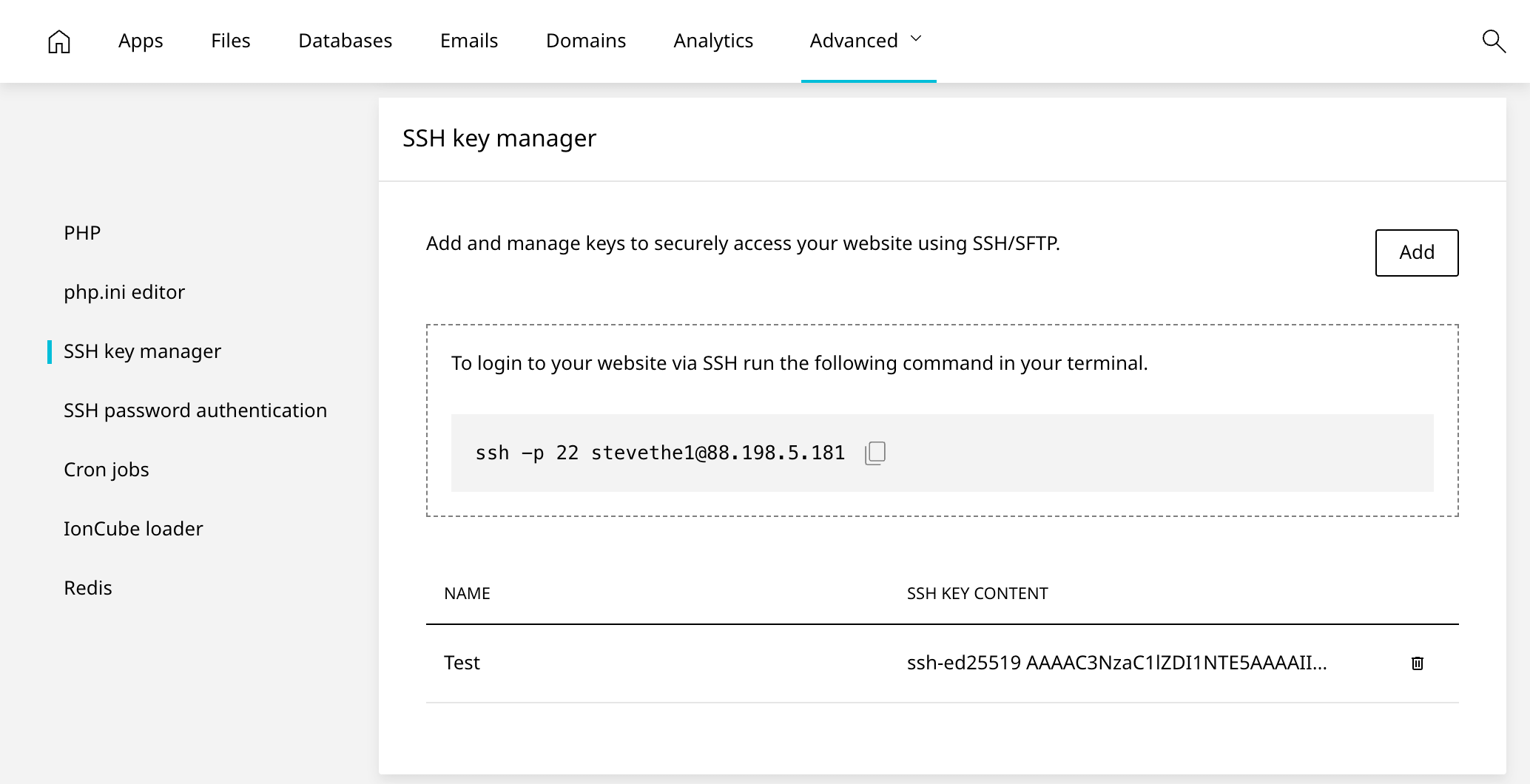
Ta-da! Your SSH key is now added and will show in the list. Click the trash icon to delete it, or add another one. You'll also see your username displayed here, which you'll need for connecting.
Connect to SSH
We're assuming you're using your terminal of choice. For SSH clients like PuTTY or Termius, follow their documentation for connecting with SSH keys.
Fortunately on modern Windows, the steps are now largely the same as on macOS and Linux. Just connect with:
ssh -i /path/to/your/ssh_key username@sonic.tachi.host
Replace /path/to/your/ssh_key with your actual key path (typically ~/.ssh/id_ed25519 on macOS/Linux or C:\Users\YourName\.ssh\id_ed25519 on Windows), and use your username from Enhance.
Windows 11 includes a new Terminal app that's very nice. You can also use PowerShell or the Command Prompt. For macOS, use the Terminal app or something else like Ghostty or iTerm2. You folks on Linux know the drill.
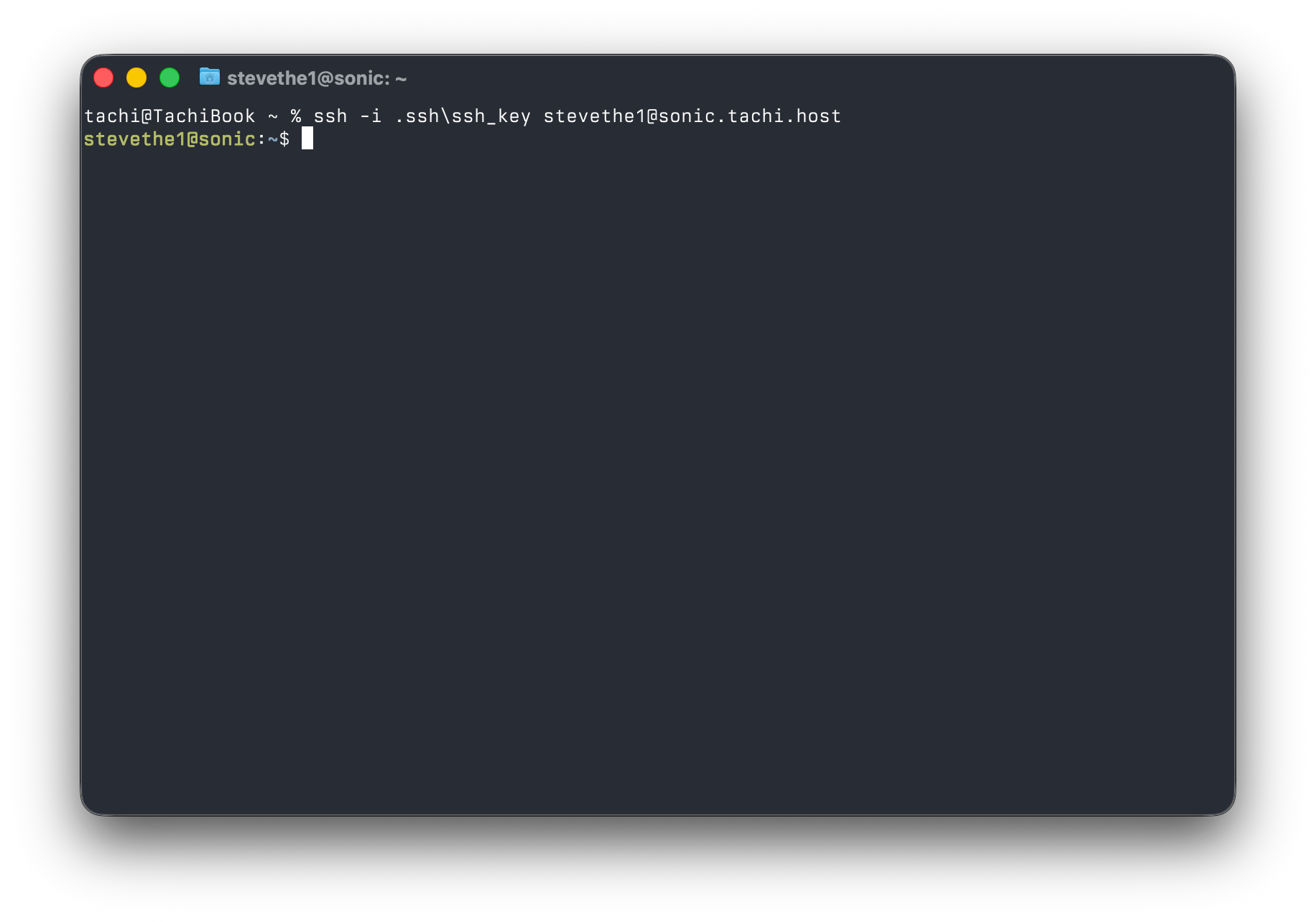
Congratulations! You're now in SSH and ready to mess around with the command line. You'll land in your home directory, from where you can navigate to your site files and run commands.
Please reach out to us if you have any problems connecting. It helps to include your IP address.
Still need help? 🙋♂️
Response within 1 hour.